Getting started
Your first day
Work through Today's Getting started checklist, from intel and communities to your first scan and your first posted reply.
With the welcome wizard done, you’re about an hour from your first posted reply. Most of that hour is waiting for intel and the first scan. Today’s Getting started checklist walks you through it, and this page explains each step.
The Getting started checklist
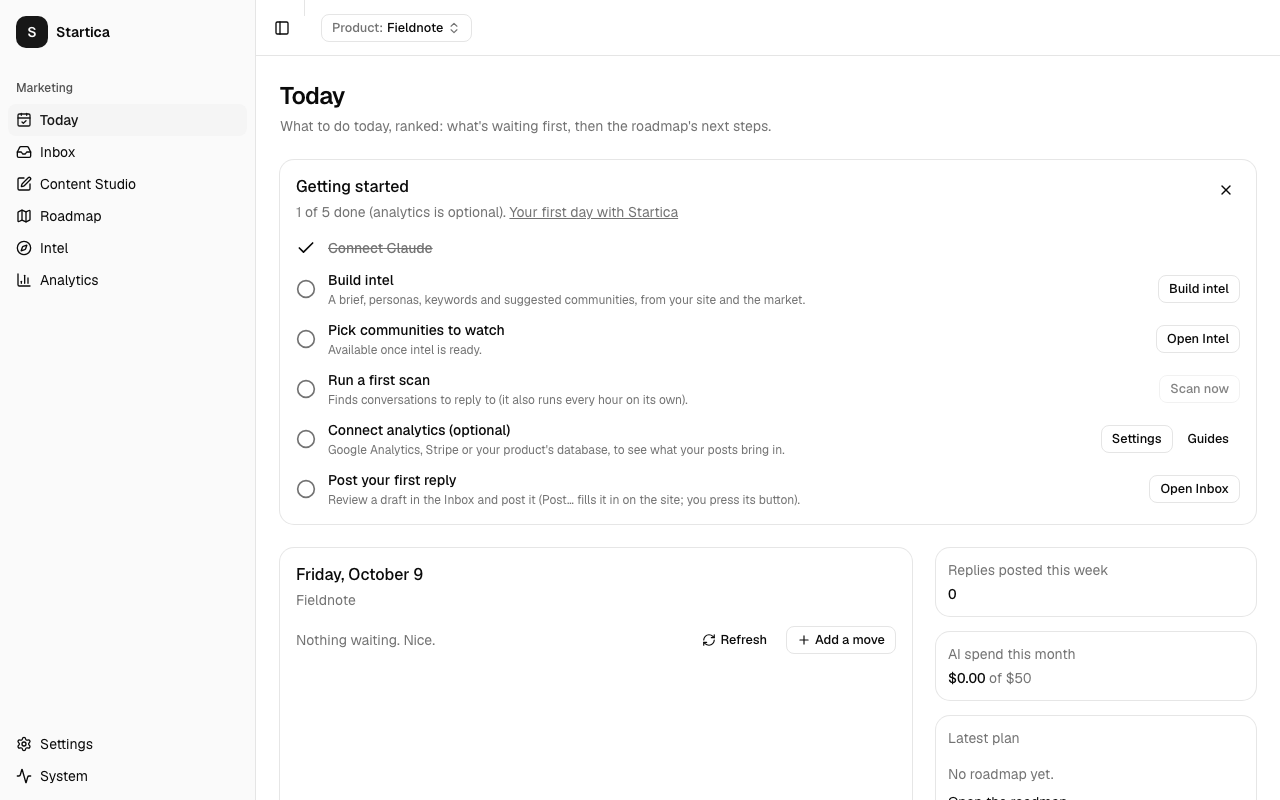
The checklist sits at the top of Today, above the moves. Its header counts the five required steps (“1 of 5 done (analytics is optional).”) and links to this page (“Your first day with Startica”). It updates by itself as things finish, so you can leave Today open while intel builds or a scan runs.
| Step | Done when | Button |
|---|---|---|
| Connect AI | A key for your AI provider is saved. The step says “A Claude or OpenAI API key powers intel, scoring and drafts.” | Add key opens Settings. |
| Build intel | The product’s intel is ready. | Build intel (needs a key). A spinner while it builds; Retry if it failed. |
| Pick communities to watch | The product watches at least one community. | Review suggestions once intel is ready; before that it says “Available once intel is ready.” and offers Open Intel. |
| Run a first scan | A scan of this product has finished: one for this product, or a scan of all products that ran after you added it. | Scan now (needs intel to be ready, or a watched community). |
| Connect analytics (optional) | A connection for the product syncs without errors. | Settings, plus Guides for the setup guides. |
| Post your first reply | You’ve posted a reply or a Content Studio piece. | Open Inbox. |
Finished steps get a check mark and are struck through. The checklist disappears by itself once the five required steps are done, whether or not you’ve connected analytics. Until then, Connect analytics (optional) stays on the list; after that, Today’s moves keep suggesting it until a connection works. To hide the checklist sooner, click the X in its corner (Hide the checklist). To bring it back, use Settings → General → App → Run setup again.
The checklist never shows in demo mode: the sample product is already set up.
While the checklist shows, Today’s list of moves leaves out the setup steps it already covers. See Today.
The rest of this page follows the checklist, with a few steps of its own that make a big difference: reviewing intel and checking keywords.
1. Connect AI and build intel
If you skipped the key in the wizard, click Add key on the checklist. It opens Settings: in the AI card, click Add API key, choose Claude (Anthropic) or OpenAI under Use, paste that provider’s key, set a budget and click Save. See Anthropic API key or OpenAI API key.
If intel isn’t building yet, click Build intel on the checklist. A spinner shows “Researching your product (3–4 minutes)…” while the AI works (well under $1). If the build fails, the checklist says “The last build didn’t finish.” and offers Retry; the error is on the Intel page. See How intel builds.
2. Review the intel
Once intel is ready, open Intel and read each tab. The AI’s first pass is a starting point, not gospel.
- Brief. Check the audience, problem and positioning. Click Edit brief to fix anything. Once you edit it, rebuilds keep your version.
- Personas and Competitors. Delete anything that’s off. Add what’s missing.
- Open questions in the brief. Answer them in Your notes for Startica, then click Rebuild intel when you’re ready. Better notes make better drafts.
Everything here feeds scoring, drafting and the roadmap, so ten minutes now pays off.
3. Pick communities to watch
Startica scans the communities you mark Watch on Reddit (subreddits), Mastodon (hashtags) and Discourse (forums). Hacker News and Bluesky are searched by keyword and need no communities. Until you watch at least one subreddit, Reddit isn’t scanned.
From the checklist
Once intel is ready, click Review suggestions on the checklist. The Communities to watch dialog lists intel’s suggestions, strongest first, each with its channel and why it was suggested.
Up to 5 are ticked for you: the strongest ones Startica can actually read. That means a subreddit, a Mastodon hashtag written #tag@server, or a Discourse forum with an address. Suggestions it can’t scan, like a Hacker News community or a Mastodon suggestion without a server, are listed but not ticked.
- Untick any that don’t fit, and tick others you want.
- Click Watch N communities (for example Watch 5 communities).
Startica watches the ticked ones and starts the first scan straight away: “Watching them. The first scan is running.” The rest stay suggestions on the Intel page.
If intel isn’t ready yet, the step says “Available once intel is ready.” and Open Intel takes you to the Intel page.
On the Intel page
To fine-tune the list, or to add communities intel missed:
- Open the Communities tab.
- Click Watch on communities where your audience asks questions; 3 to 5 is plenty to start. For Fieldnote, that might be subreddits about field research, ethnography or qualitative methods.
- Click Ignore on any that don’t fit. Ignored communities stay ignored after a rebuild.
To add one the build missed, click Add community and pick the channel:
- Reddit: enter the subreddit name without
r/(for examplestartupsfor r/startups). - Mastodon: enter a hashtag and its server as
#tag@server, for example#fieldwork@mastodon.social. - Discourse: enter the forum’s name, and its address in URL, for example
https://forum.example.com.
Communities you add are watched right away.
If you know a community’s self-promotion rules, add them under Self-promotion rules. The drafter reads them. When the rules are unknown, it treats the community as strict.
Tip
Each scan reads up to 10 watched subreddits and 5 watched Discourse forums. Start small: a few active communities beat a long list of quiet ones.
4. Check keywords
Open the Keywords tab. Keywords set to Listening only or Listening and SEO drive listening:
- On Hacker News, Startica searches for each listening keyword (up to 20).
- On Bluesky, it searches for each of the first 10.
- On Reddit and in each watched Discourse forum, it runs up to 3 keyword searches. Your own keywords come first.
- On X, only if you’ve added an X API token, it searches your first 3 in one rationed search.
Click Add keyword to add phrases people use when they describe the problem, like “organize interview notes” for Fieldnote. Remove vague ones that match everything.
5. Run the first scan
Scans run every hour at 7 minutes past, while Startica is open. Watching communities from the checklist already starts one. To start one yourself, click Scan now on the checklist or in the Inbox. On the checklist it works once intel is ready, even before you watch a community: Hacker News and Bluesky are searched by keyword.
Reddit allows about one request a minute, and each Discourse forum takes a minute or two, so a full scan can take 15 minutes or more. Results appear in the Inbox as they’re scored, and the status indicator at the top right of the window shows that it’s running; hover over it for details. You don’t need to watch it. Go do something else.
Each new thread is scored for relevance and intent by your score model (Claude Haiku or GPT-6 Luna by default). Threads that score high enough (by default, relevance at least 0.7 and intent at least 0.5) get a drafted reply. The rest go to the Archived tab. If too much good material lands there, lower the bar with Scoring in the Inbox. Threads older than 7 days aren’t scored.
6. Post your first reply
Click Open Inbox on the checklist. The Inbox has five tabs: To review, In progress, Posted, Archived and Dismissed.
For each card in To review:
- Read the thread preview and Why it matched.
- Edit the draft in place. It shows whether it mentions your product, and how often you’ve mentioned the product in that community recently.
- If it needs a different angle, click Regenerate and say what to change, for example “Shorter. Don’t mention the product.”
- Post it yourself, one of two ways:
- Post… (desktop app, beta; X, Hacker News, Reddit, LinkedIn, Bluesky, Mastodon and Discourse): a posting window opens on the thread with your reply filled in. The first time, sign in to the site there and click Fill in again. Check the reply and press the site’s own button. Startica saves the link and moves the card to Posted. See Posting with Startica.
- Copy & open thread (any channel): the reply is copied and the thread opens in your browser. Paste and post it, then back in Startica click Mark as posted. Add the link to your reply if you have it, so Startica can track replies to it.
If a thread isn’t a fit, click Dismiss and pick a reason. If something in Archived deserves a reply after all, click Draft a reply anyway.
Found a thread yourself? Click Paste a link, paste the link, and click Draft a reply. Reddit, Hacker News, Bluesky, Mastodon and Discourse links are read for you; for X, LinkedIn, Facebook groups and other sites, paste the post’s text too. See Manual channels.
Warning
Communities notice self-promotion. Post replies that help on their own, and mention your product only when it genuinely answers the question. Startica’s drafts aim for this, but you’re the one posting.
The checklist marks this step done once you’ve posted a reply or a Content Studio piece.
7. Optional: connect analytics
To see which replies bring visitors and signups, connect your numbers in Settings. The checklist’s Settings button opens it, and Guides opens Bring your own credentials:
- Google Analytics with a read-only service account key, or Umami (Cloud or your own server) with an API key. See Google Analytics and Umami.
- Your product’s database on Supabase or any Postgres: Startica writes a short SQL script, you run it, and Startica reads daily totals through a read-only login. See Product database.
- Stripe with a restricted key. See Stripe.
- Google Search Console and, optionally, Bing Webmaster Tools, for the queries people find your site with. Results show on SEO & GEO → Search. See Google Search Console and Bing Webmaster Tools.
Metrics sync every day at 08:15 while Startica is open, and whenever you click Sync now. Results show on Analytics. Links in drafts carry UTM tags, so Google Analytics or Umami can attribute visits to individual replies. The checklist marks this step done once a connection syncs.
8. Check Today
Below the checklist, Today ranks up to 7 moves: drafts waiting for review, setup gaps, and your roadmap’s next steps. While the checklist shows, the setup gaps it already covers aren’t repeated as moves.
- Click Go to jump to the page where you do the move.
- Click the circle on the left to mark a move done, or the skip icon to skip it for today.
- Click Add a move to add your own.
- Click Refresh to rebuild the list after you’ve made changes.
Today suggests “Generate the growth roadmap” until you have one. Open Roadmap and click Create the roadmap when you’re ready. See Roadmap.
9. Optional: check your site
The checklist is about marketing, but the same product’s website can be checked for accessibility, search and security problems. Nothing here uses AI, so it costs nothing.
- Open Accessibility → Overview and click Add the site. The form is filled in from the product. Tick I own this site or am allowed to test it and click Add site. See Add a site.
- Click Scan now. One scan loads each page once and runs the checks of every module: the results show under Accessibility and SEO & GEO. A 250-page site takes a while; you can keep working, and the status indicator at the top right shows the progress.
- To turn on security checks, open Security → Overview and prove the site is yours with a DNS record, a file or Search Console. Today suggests this as a move (“Verify site to turn on security checks”) until you do. See Prove the site is yours.
After that, Startica rescans the site every week on its own, and the Dashboard and Today bring up anything serious it finds.
Next
- See every module at a glance: Dashboard.
- Learn the Inbox in depth: Drafting replies.
- Keep jobs running while the window is closed: Running in the background.